
Client Online Access Instructions
What to Expect
Client online access allows you to verify account uploads and review account activity notes.
Please note: Account data is uploaded daily; however, processing time may result in a delay of up to 14 days before notes are visible.
How to Log In
1
Open your web browser (Chrome, Edge, Firefox, Safari, Opera).
2
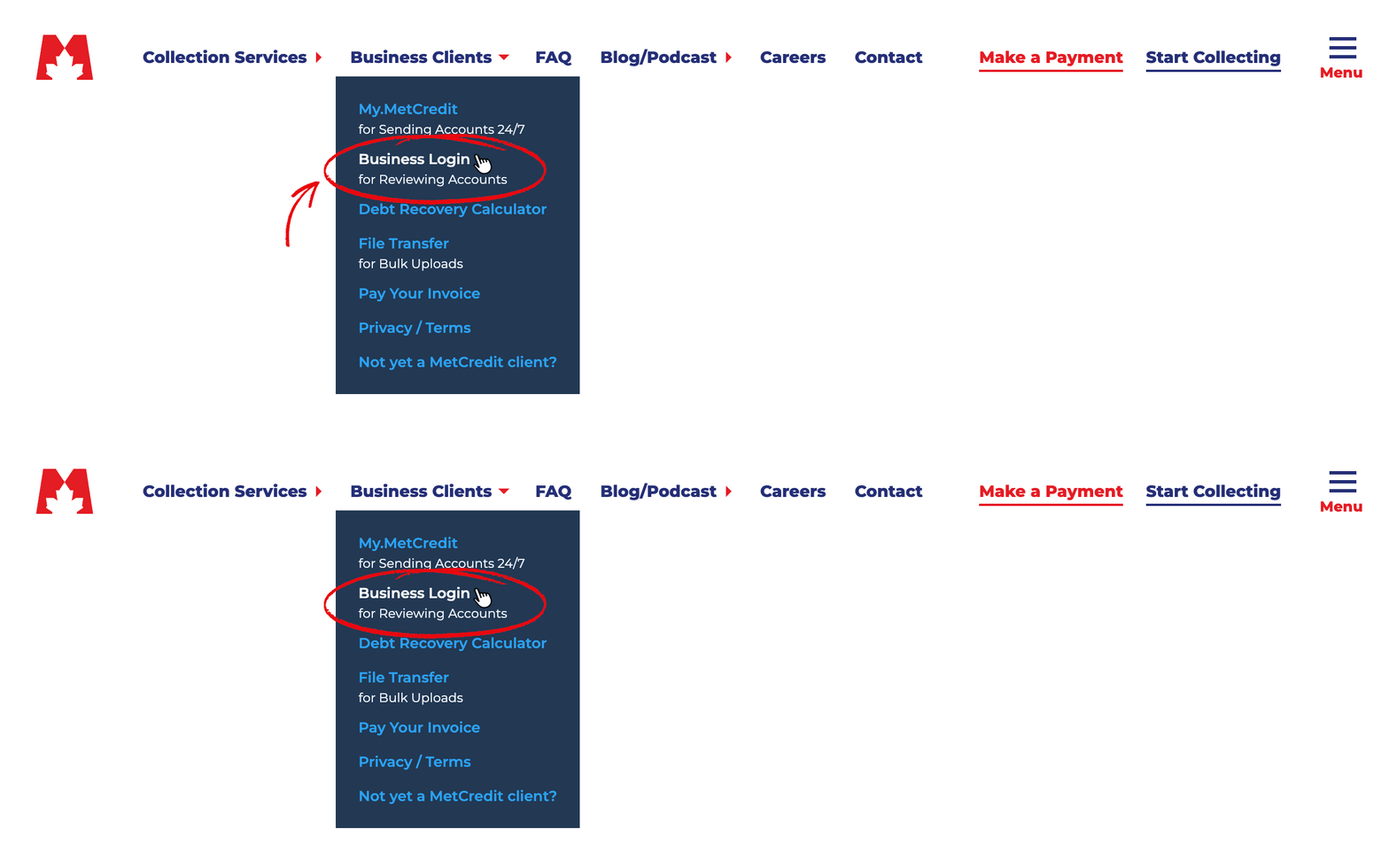
Go to www.metcredit.com and select Business Clients in the menu, then click Business Login in the dropdown.
3
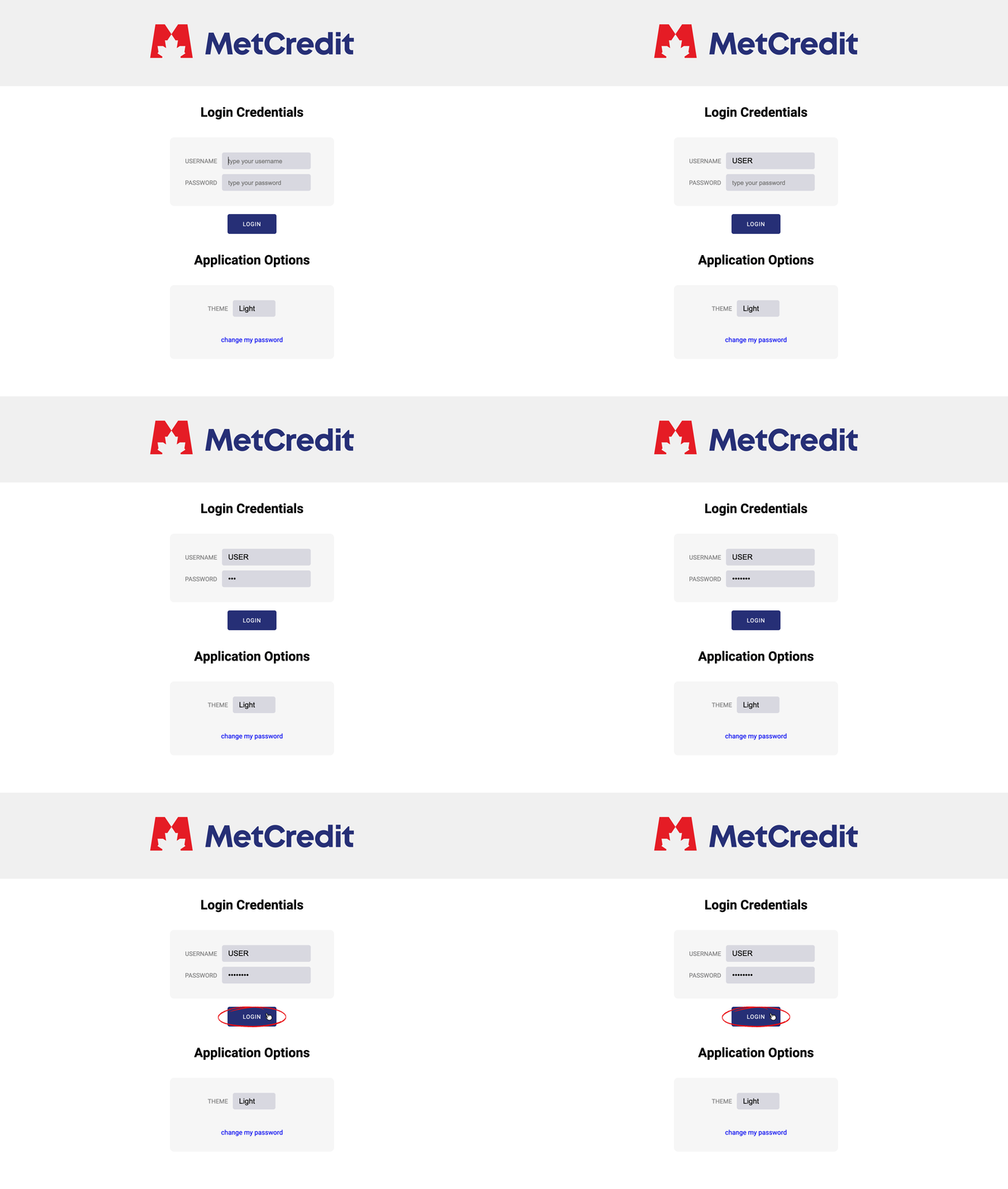
Enter your provided username and password and click Login. Note: Username and Password are CASE SENSITIVE. You can also choose between a dark or light theme.
4
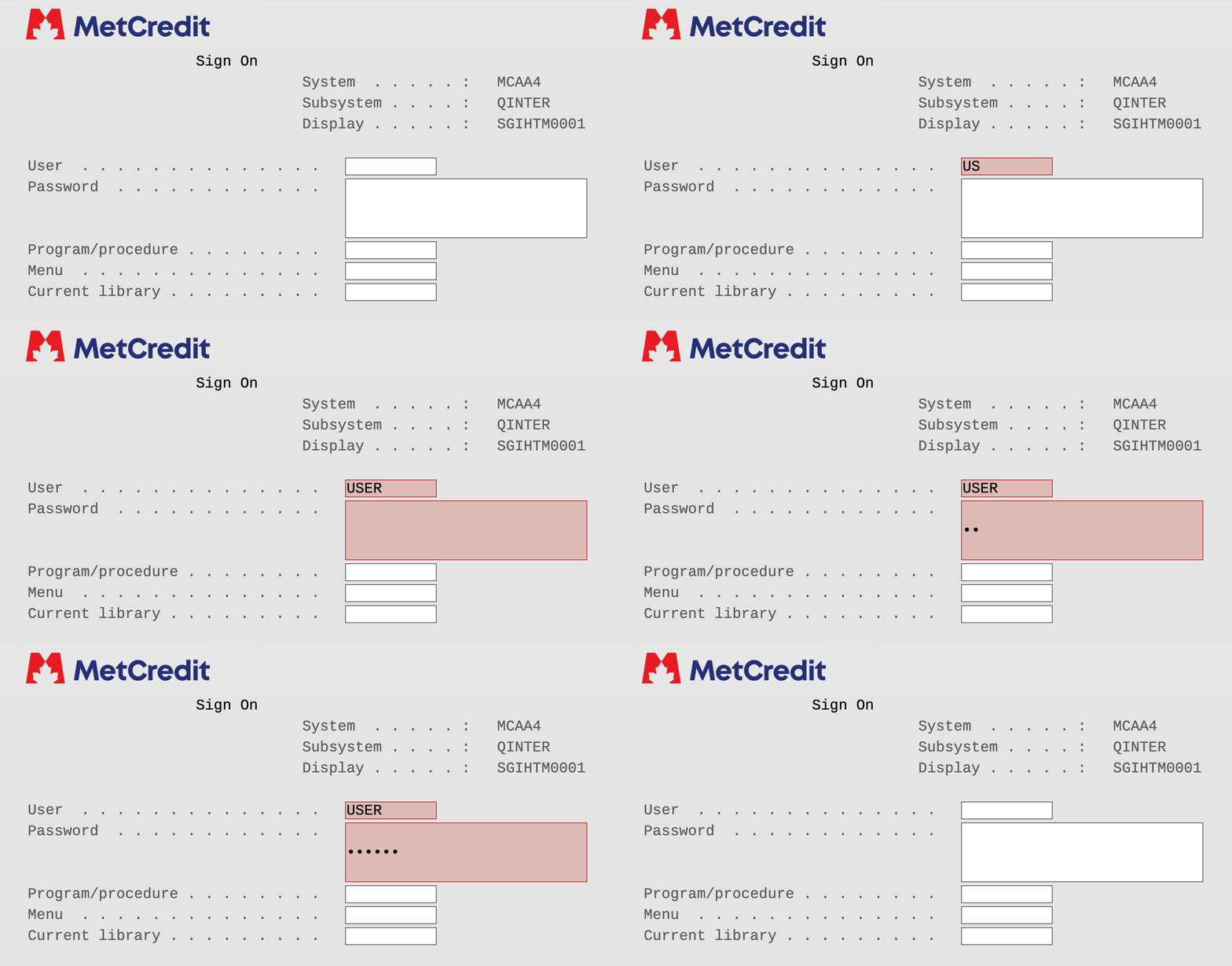
You will be prompted to sign in again on this screen.IMPORTANT: After entering your name, press TAB — not ENTER. Pressing ENTER will lock you out of the system. Please also note that these fields are case sensitive.
5
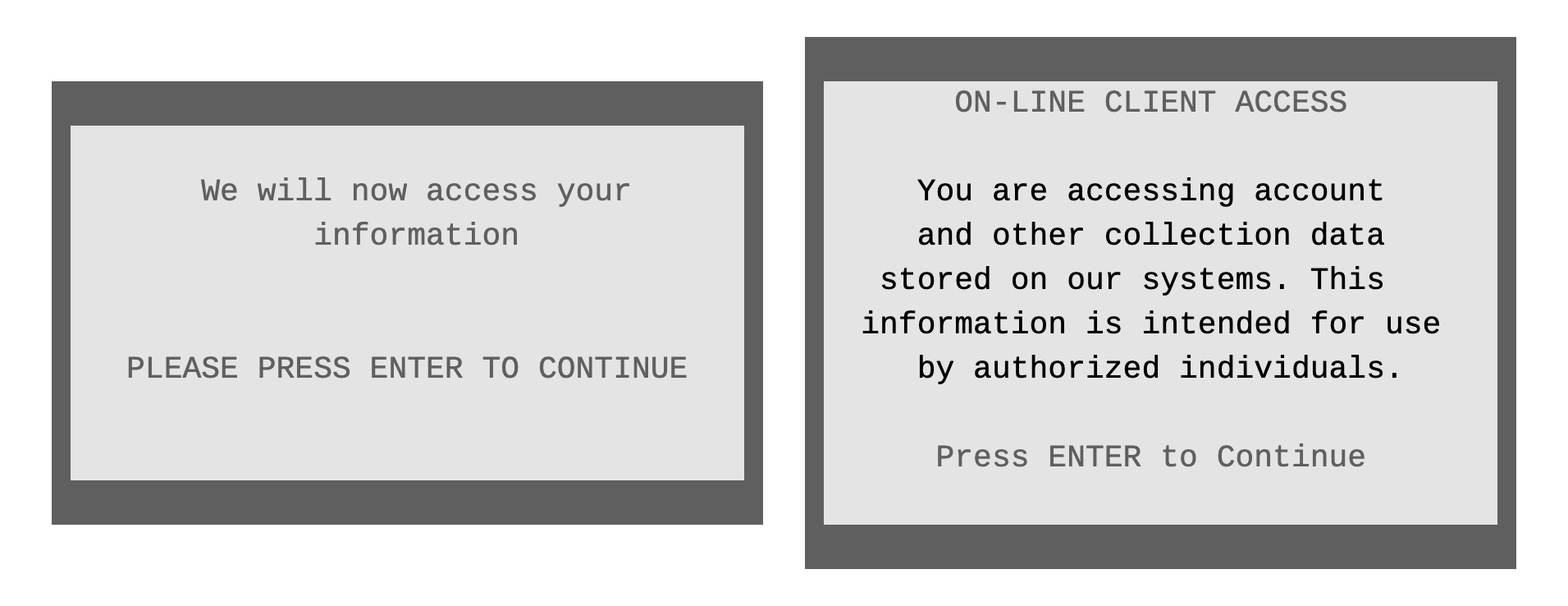
Press Enter at the next two prompts to get into the system.
6
Congratulations, you are now logged into the On-line client portal. Note: everything is view only.To search, first select Account Inquiry by typing 01 into the Select an Option field and press Enter.
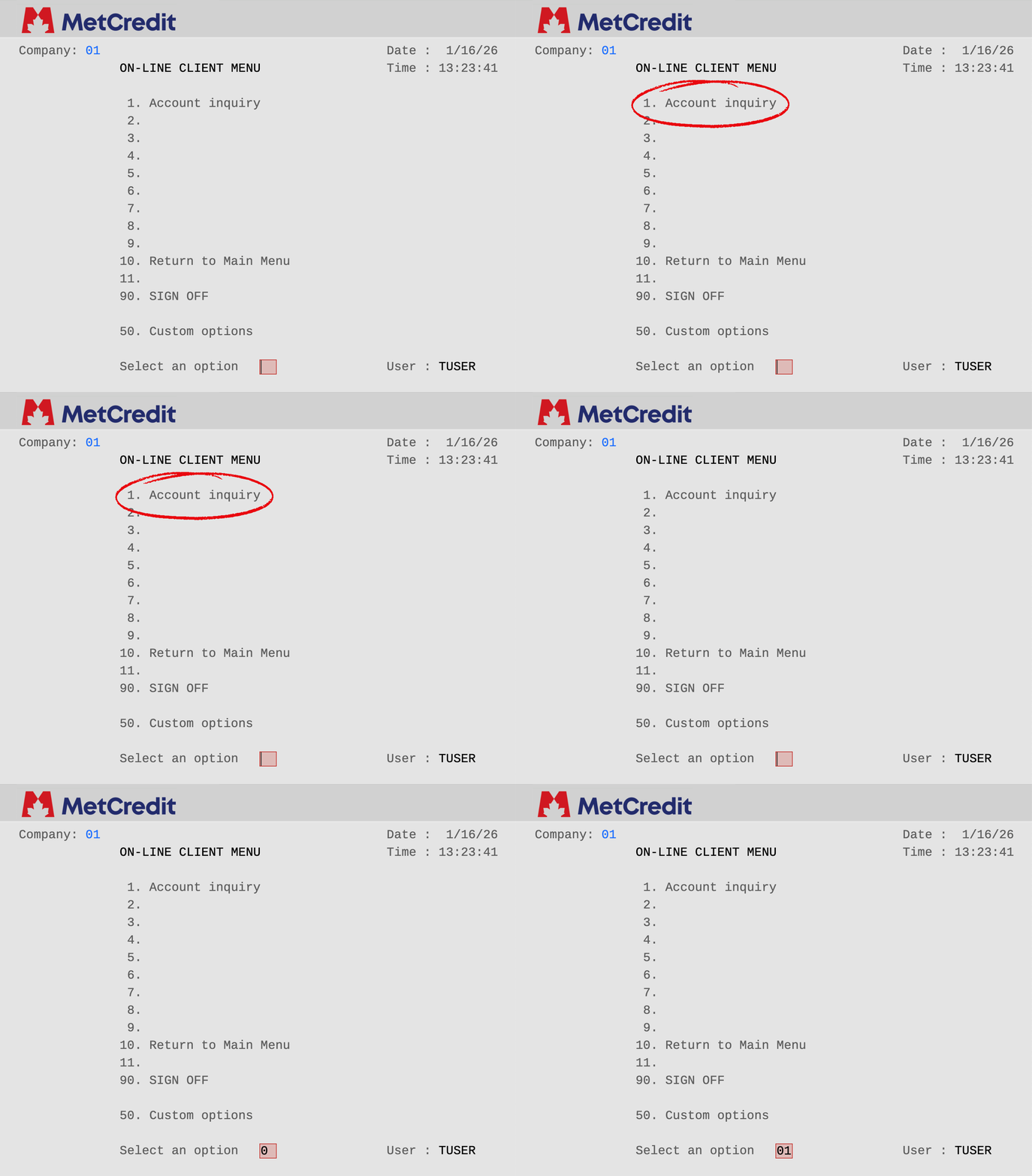
How to Search
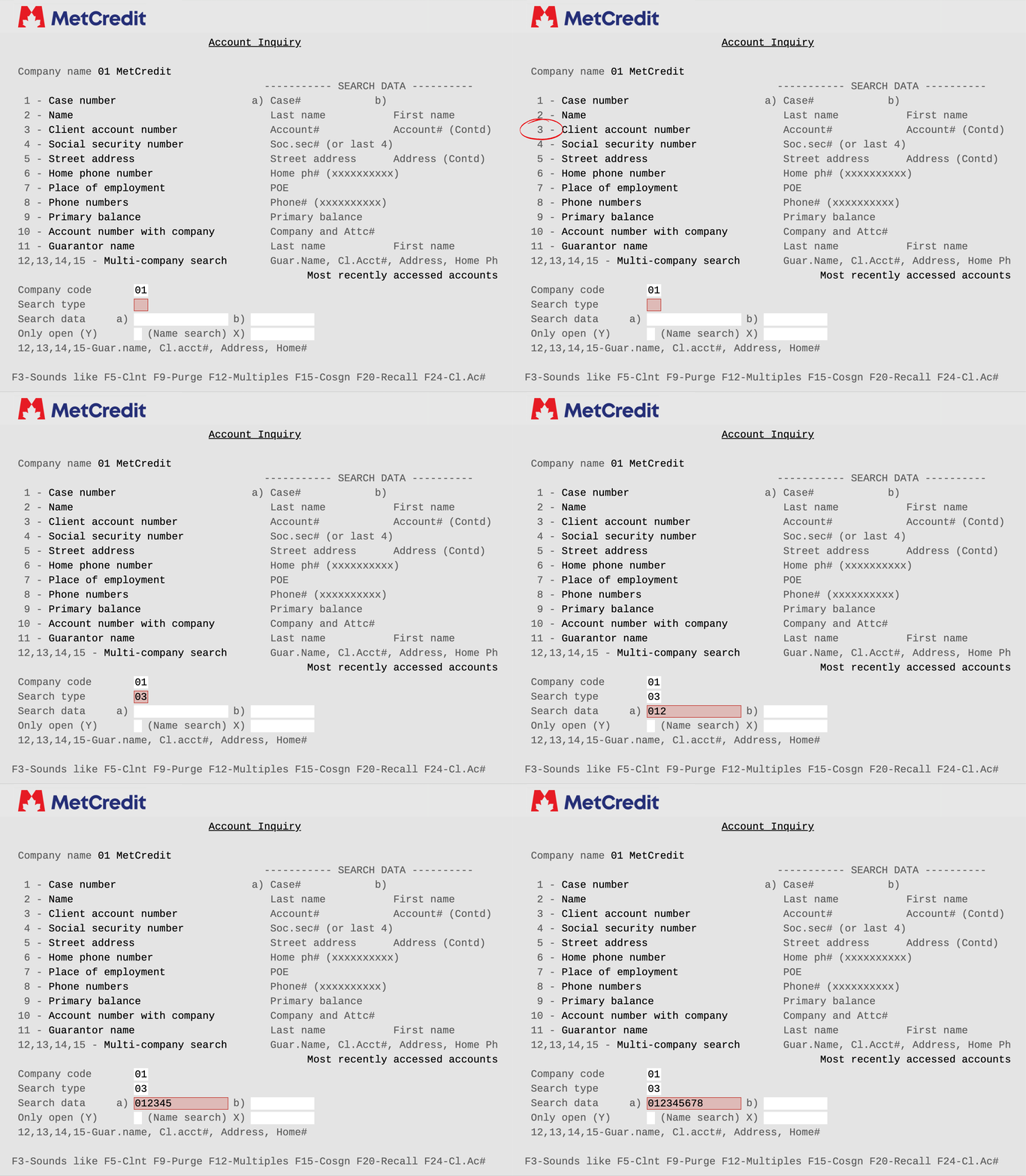
When submitting a search, first type the number of the category you’d like to search into the Search type field and press Enter.For example, if you’d like to search for an account by case number, type 01 into the Search type field. If you’d like to search for an account by name, type 02 into the Search type field. If you'd like to search an account by client account number type 03 in the Search type field.
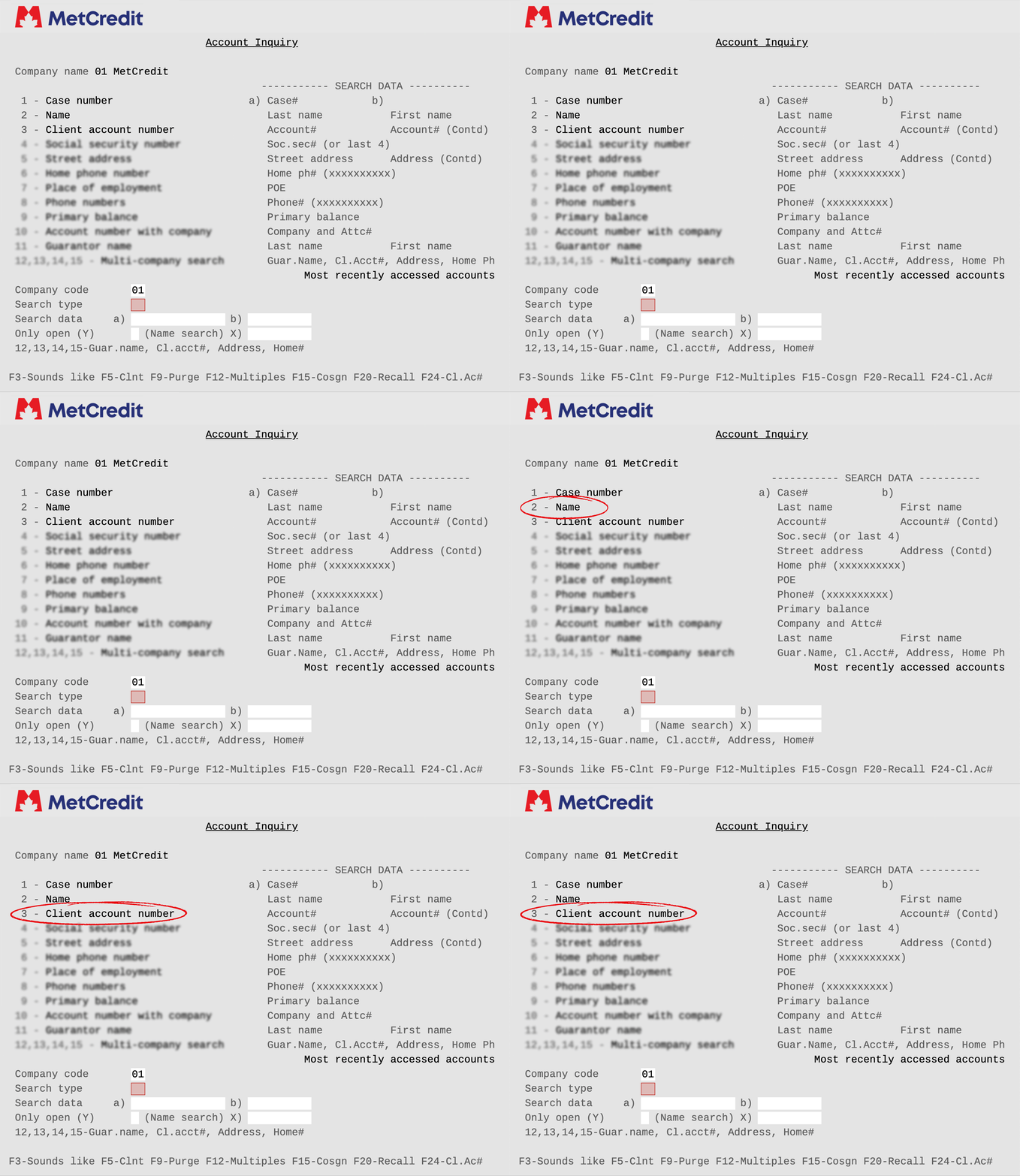
#1 - Search by Case Number: Enter MetCredit’s 9 Digit case number in the Search data a) field.
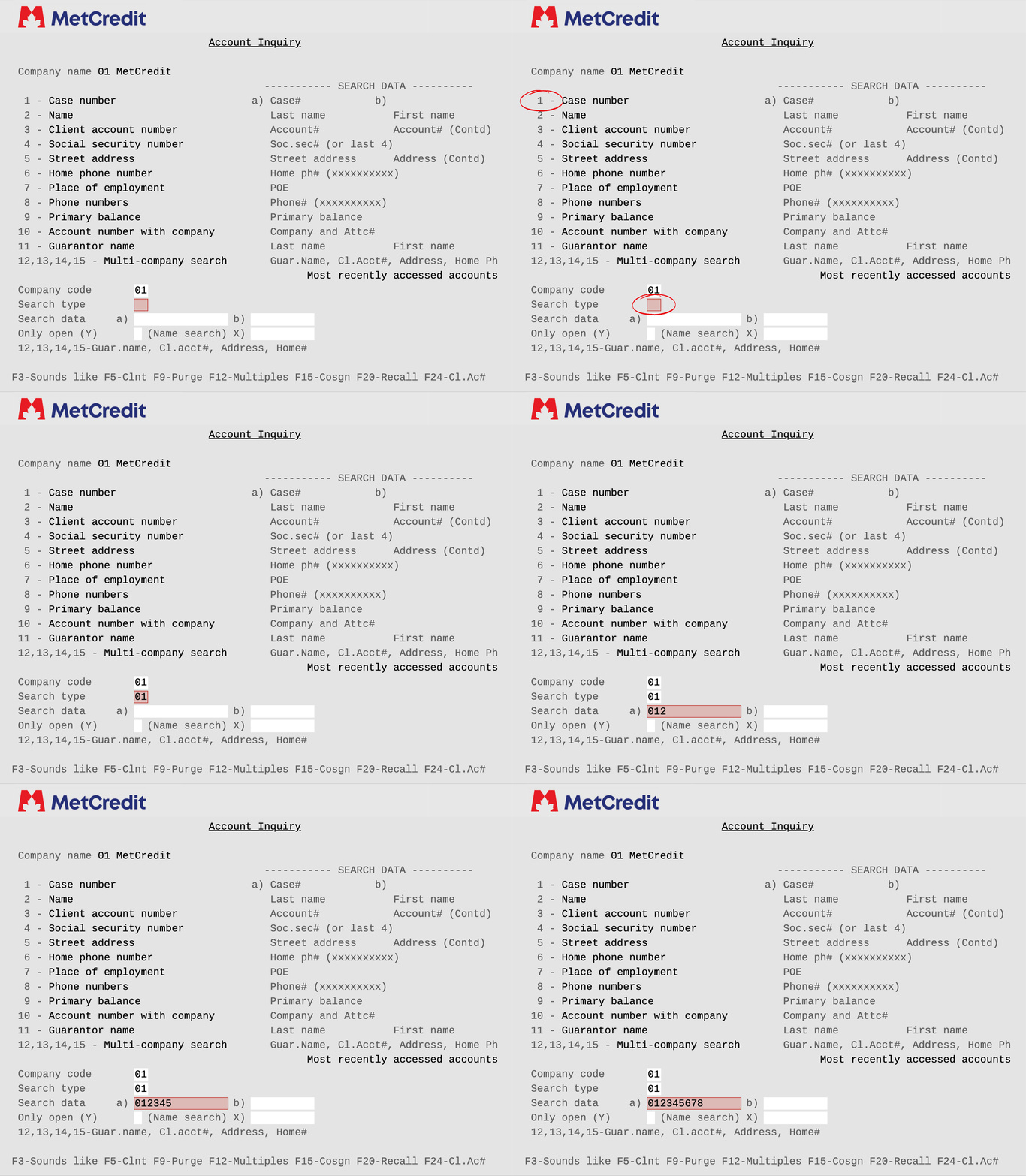
#2 - Search by Name: Enter the last name of the account in field a), first name (can be partial) in box b), and it will give you a list of your accounts that match that name. If it’s a corporate name, start the name in field a).
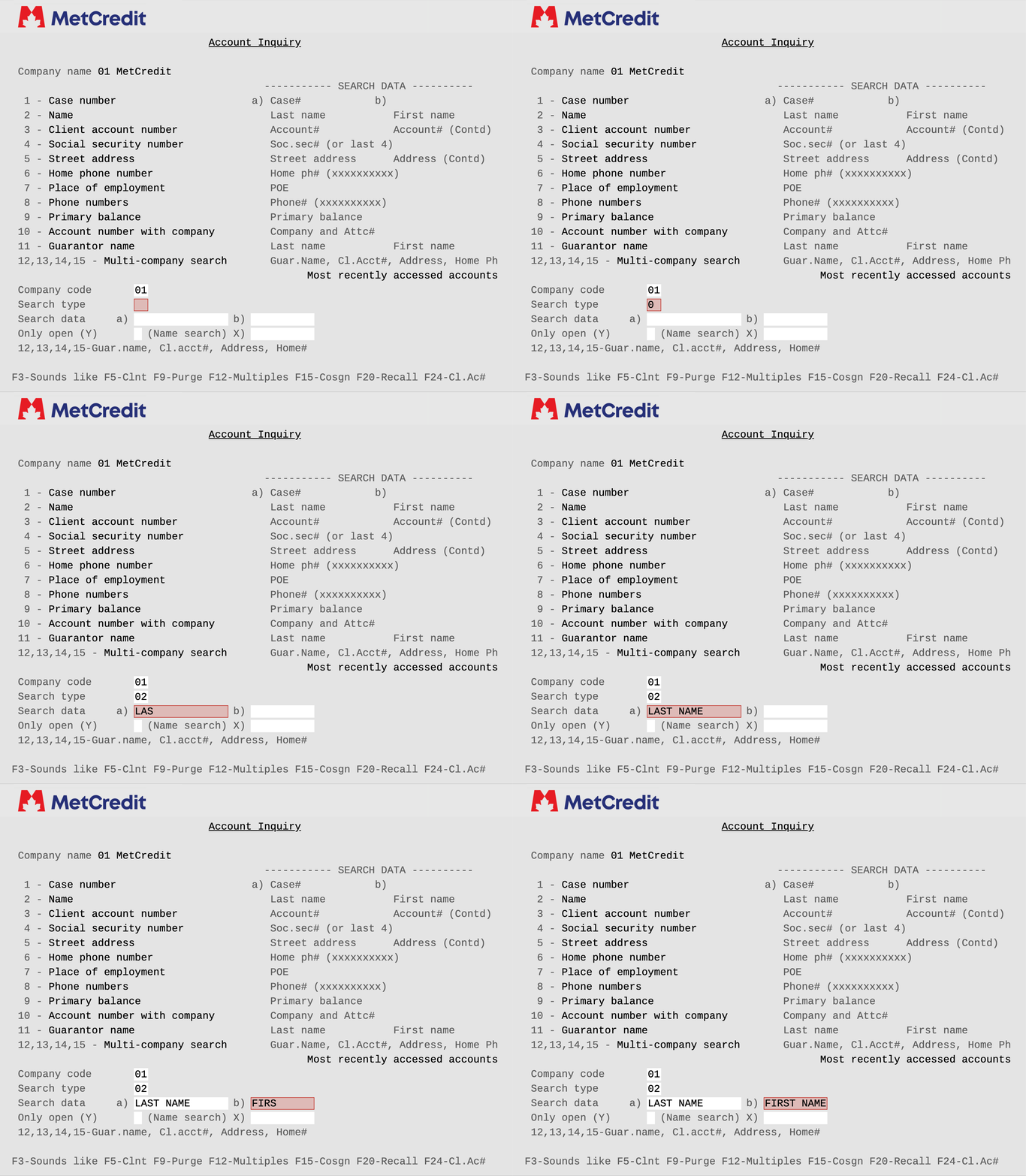
#3 - Search by Client Account Number: Enter the account number you provided to MetCredit from your system in the Search data a) field.
To return to the main menu, please press F7. Please refer to the F-function commands at the bottom of each screen.
Understanding Account Activity
- Notes show actions taken and account progress.
- Updates are added as activity occurs.
- All files are actively managed and monitored by the MetCredit team.